
In my post NEW FEATURES in Oracle Integration 3! (25.04), I wrote about the new native action in Oracle Integration Cloud (OIC) – AI Document Understanding. OCI Document understanding is not new, but the out of the box action to connect OIC and OCI Document Understanding absolutely is in release 25.04. With this feature, you can extract information from documents such as invoices, receipts, images, etc and build that information into your integration workflow. In this post, we will look at how to use this new action.
- Pre-Requisites
- Check out OCI Document Understanding
- Upload the file to OCI Object Storage
- Create an Integration
- Test the integration
Pre-Requisites
- An Oracle Integration Cloud (gen3) instance
- Access to OCI Document Understanding
- Access to OCI Object Storage (or an alternative filestore) – see my post Creating an Object Storage Bucket in Oracle Cloud.
- A dummy invoice!
Check out OCI Document Understanding
First, we should check out OCI Document Understanding. To do so, you’ll need a dummy invoice. Here is mine that I will use throughout this post:

Step 1 – Login to your Oracle Cloud console

Step 2 – Click on the menu icon (often referred to as “Hamburger” or “Pancake Stack” icon)
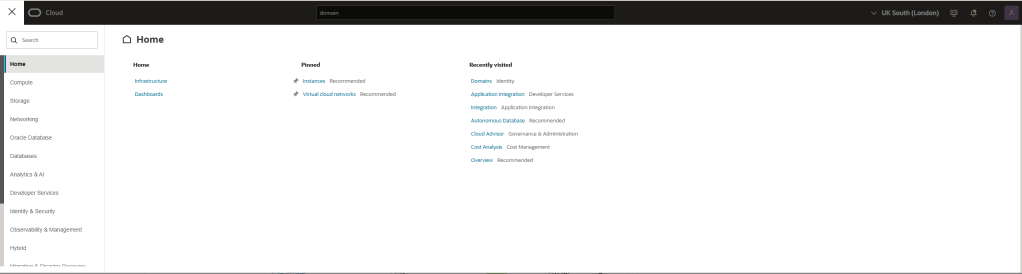
Step 3 – Select “Analytics & AI” and then “Document Understanding”

Step 4 – Select “Key Value Extraction”. You will notice that a dummy invoice is pre-loaded.

Step 5 – Select “Local Files” (you can also use a demo file or a file in your object storage bucket) and upload your file.
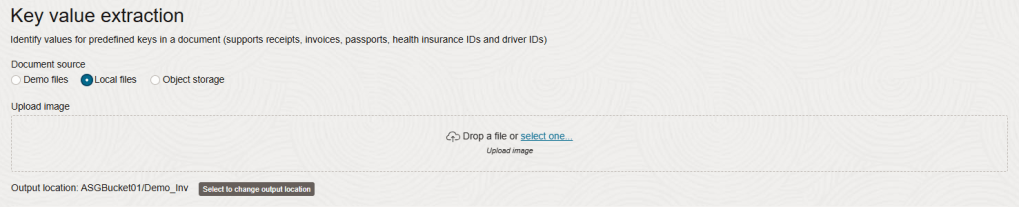
Step 6 – Define an output location by Clicking on “Select to change output location”. If you have never used this service, you may find this to be empty initially. If you don’t have an object storage bucket, see my post Creating an Object Storage Bucket in Oracle Cloud.
Select the compartment where your object storage bucket resides and the bucket itself. At a prefix and click “submit”.

Step 7 – Here, we can see that OCI Document Understanding has appropriately interpreted the invoice values

Upload the file to OCI Object Storage
Next, we need to place our dummy invoice into OCI Object Storage. If you would like, you can use an alternative file store, though this may prevent you from following the below steps exactly.
Step 1 – Login to your Oracle Cloud console
Step 2 – Click on the menu icon (often referred to as “Hamburger” or “Pancake Stack” icon)
Step 3 – Select “Storage” and the “Buckets”

Step 4 – You will be presented with the Bucket management screen. Select the compartment in which you would like to find your bucket. click on it.

Step 5 – Click “Upload” to upload a file to your bucket
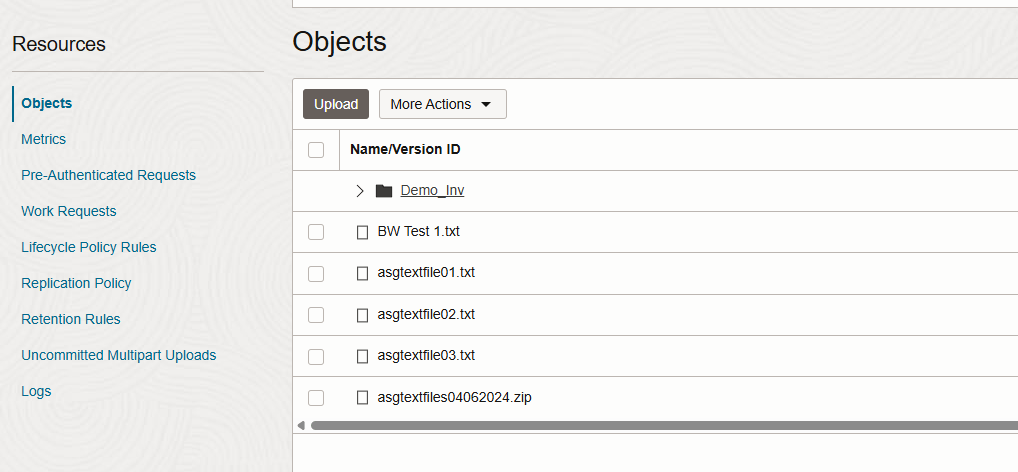
Step 6 – Select the file you wish to upload to your bucket and click “upload”

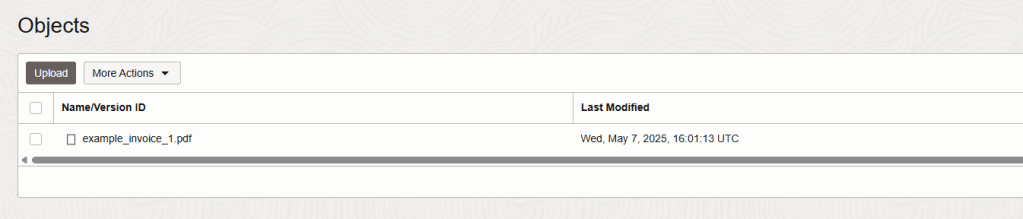
Step 7 – Here I can now see the file uploaded to the bucket
Create an Integration
Lastly, we need to create an integration that leverages the OCI Document Understanding action. Follow these steps:
Step 1 – Login to your Oracle Cloud console
Step 2 – Click on the menu icon (often referred to as “Hamburger” or “Pancake Stack” icon)
Step 3 – Select “Developer Services” and then “Integration”

Step 4 – If you wish to change the compartment of your OIC instance, you can do so here before clicking the “3 dots” icon.

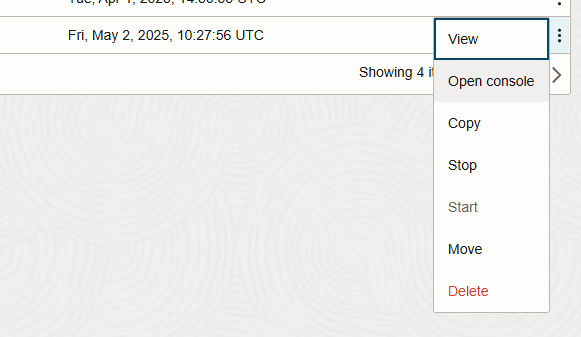
Step 5 – Click “Open Console”
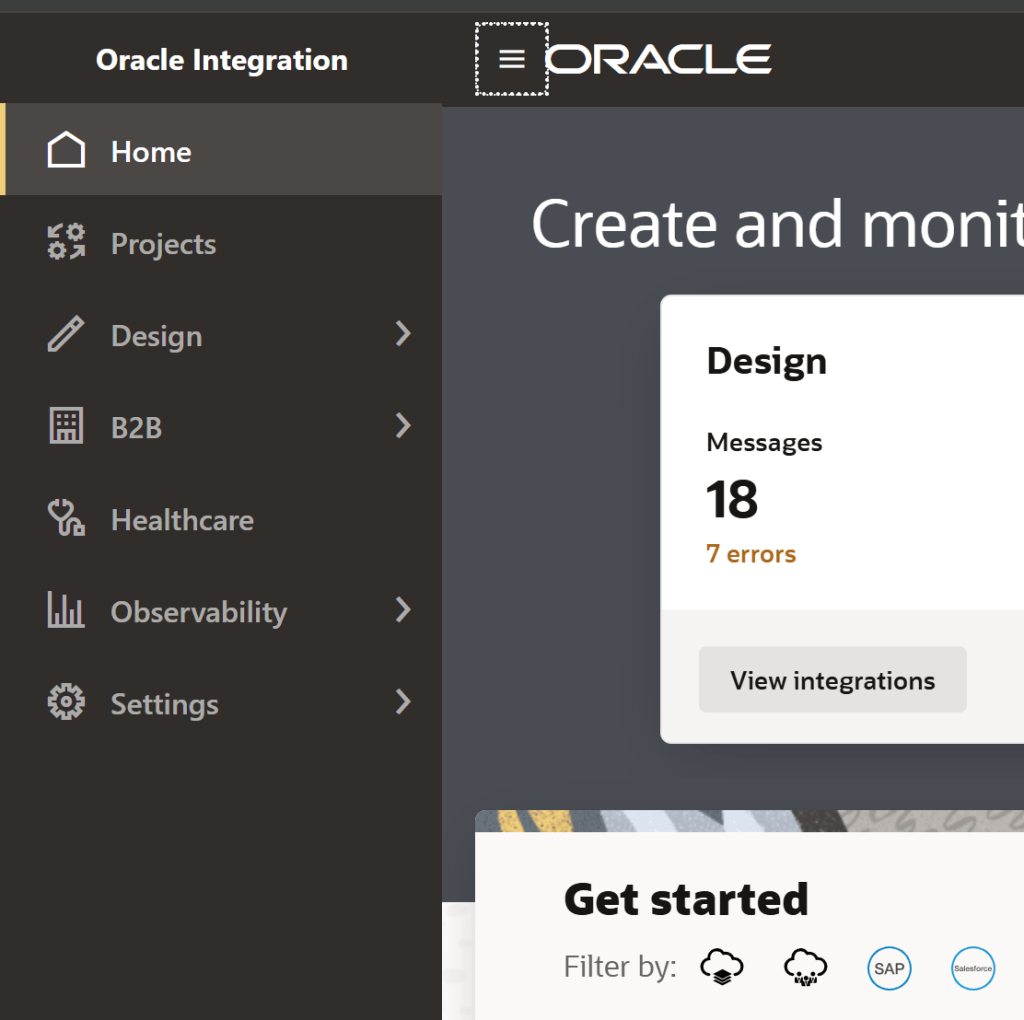
Step 6 – Click on the menu icon (often referred to as “Hamburger” or “Pancake Stack” icon) and then click on “Design”
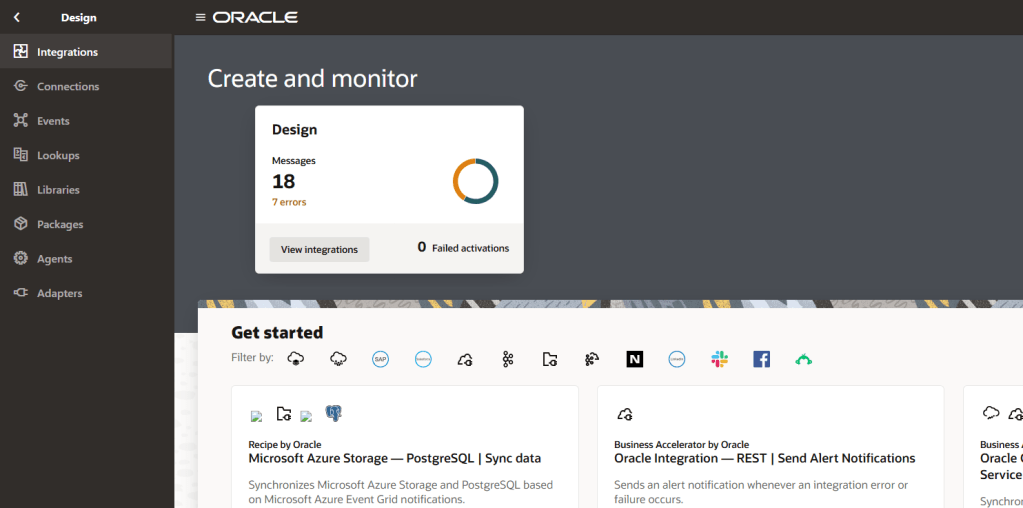
Step 7 – Click on “Integrations”
Step 8 – Click on “Create” to create an integration

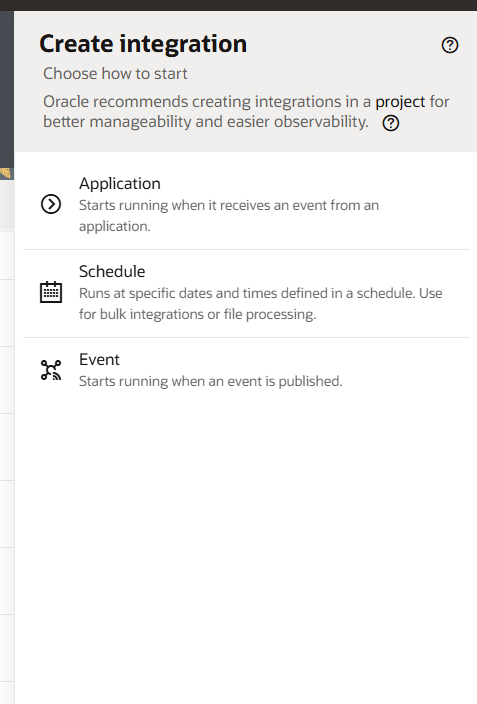
Step 9 – Select which type of integration you want to create. The types are:
- Application: An integration that starts running when it receives an event from an application
- Schedule: An integration that runs at specific dates and times defined in a schedule.
- Event: An integrations that starts running when an event is published.
Here I will select “Schedule” for ease of demonstration.
Step 10 – Populate required information about your integration and then click “Create”
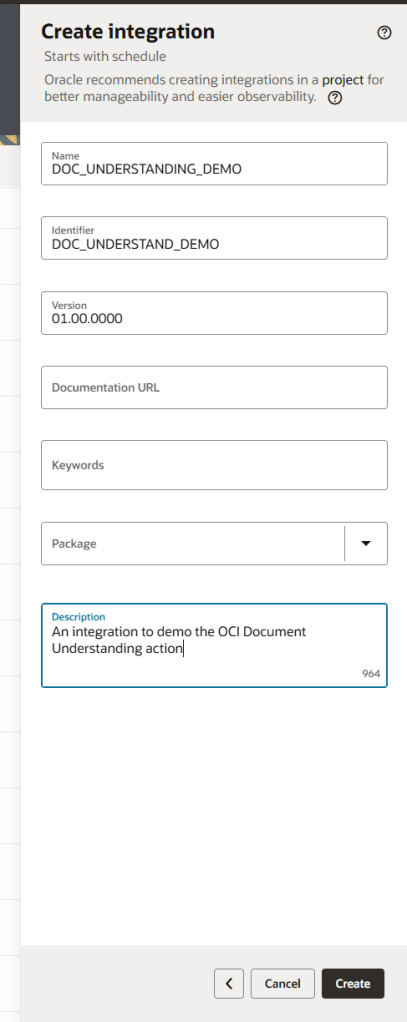
Step 11 – A new integration canvas will open and you are ready to start building your integration. In this integration, we want to perform the following actions (for simplicity of demo!):
- Connect to OCI Object Storage to retrieve the dummy invoice file (In this case, I know for certain there is only one. in practice you’ll want to retrieve all invoice files and loop around them!)
- Process the document with OCI document understanding

Step 12 – Drag an OCI Object Storage action onto the canvas.
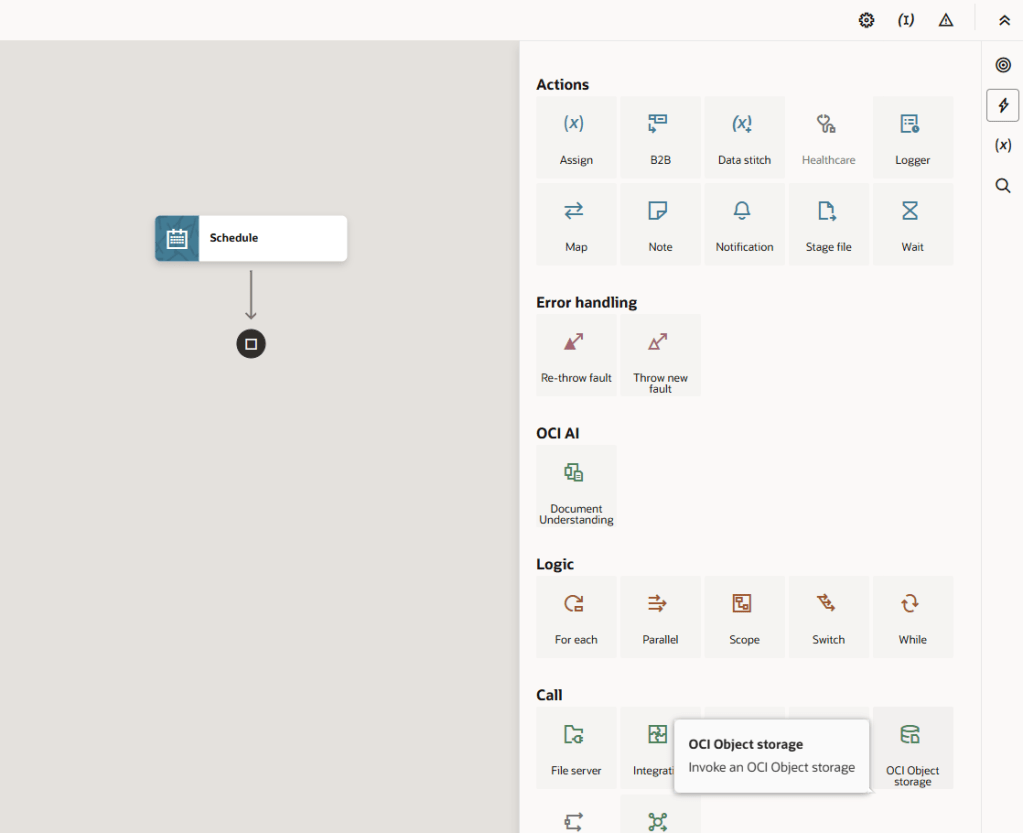
Step 13 – Configure the action before clicking “Continue” and finish

Step 14 – To save me having to showcase looping through the files found, I have edited the mapper to look only for my exact file name “example_invoice_1.pdf”.

Step 15 – Drag an OCI Document Understanding action onto the canvas.

Step 16 – Configure basic information for the action and click “Continue”
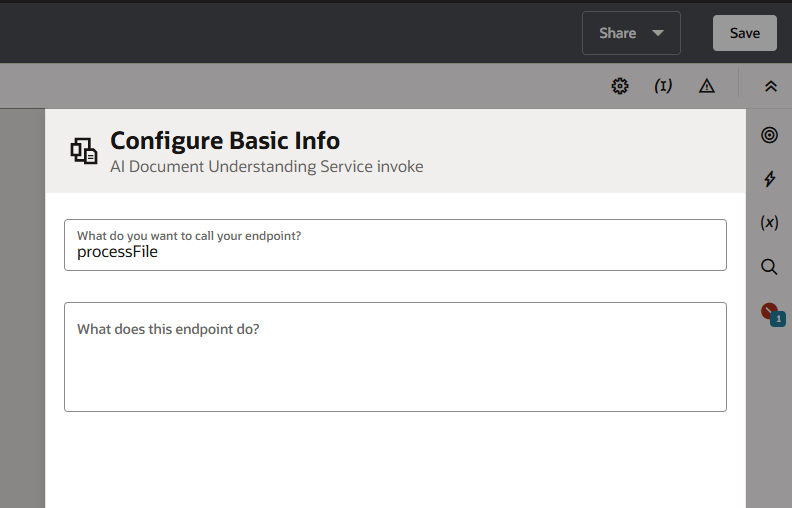
Step 17 – Configure the action. Note – the currently available document types are: Invoice, Receipt, Drivers License, Passport. Click “Continue” and then “Finish”.

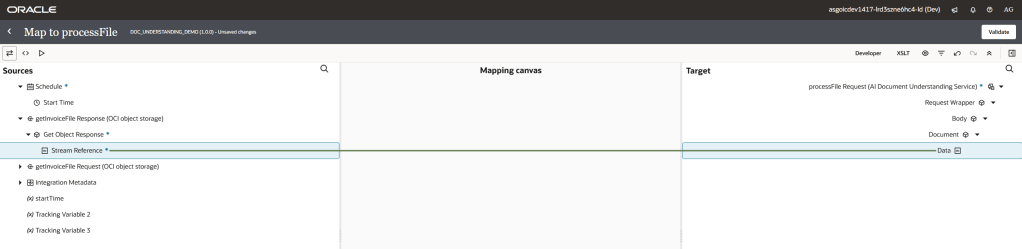
Step 18 – Now edit the mapper. When we downloaded the file with the object storage action, the result of that action is a reference to the file (not the actual file), you can see an example of that here:
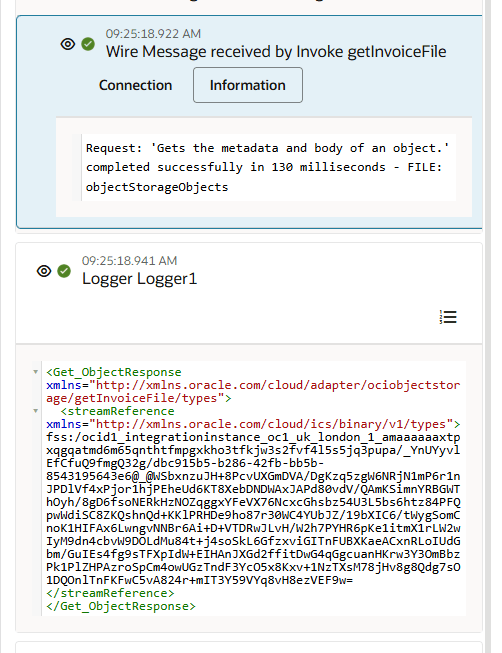
Step 19 – firstly, map the “Stream Reference” from the getInvoiceFile response to the “data” note.
Step 20 – Open the side panel using the navigator icon in the top right hand corner of the pallet. Find the “encodeReferenceToBase64” function. This function encodes the contents of the file using the base64 encoding scheme. It accepts the object storage or Virtual File System reference as an input and returns the base64-encoded content of the file returned as a value.
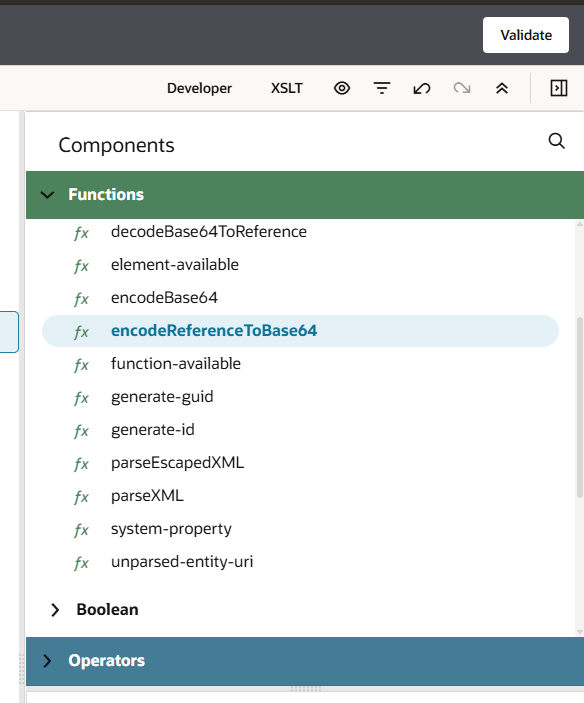
Step 21 – “drag” the function into the expression that you are applying to the data node

Step 22 – Use the “validate” feature to validate the expression mapping.

Test the integration
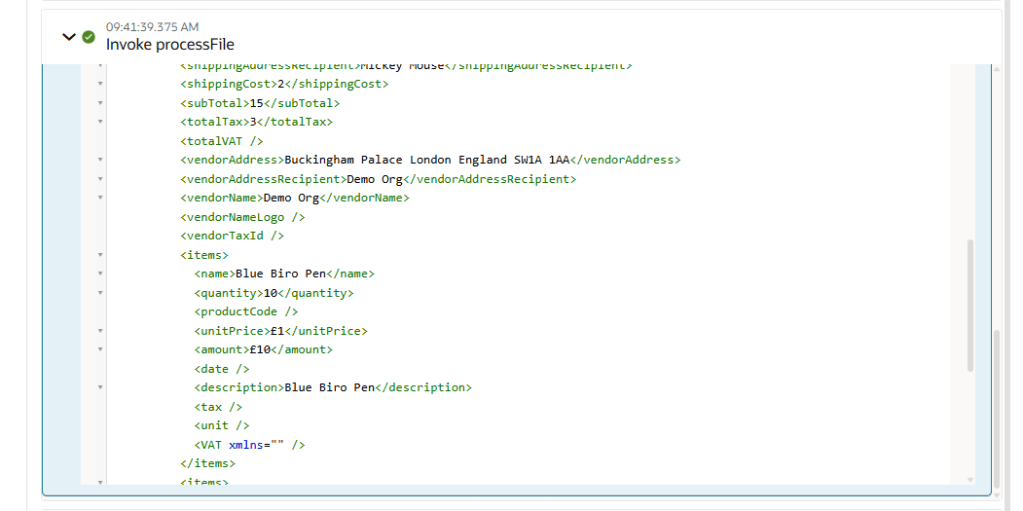
Now, we need to check that the integration is operating as we expect. Save, activate and run the integration. SUCCESS, we can see the payload containing the invoice data within the integration run activity stream!
 AMY SIMPSON-GRANGE - BLOG
Pingback: NEW FEATURES in Oracle Integration 3! (25.04) | AMY SIMPSON-GRANGE – BLOG
Pingback: Exploring Oracle Integration Cloud: May 2025 - Implementing Oracle Integration Cloud
Pingback: NEW FEATURES in Oracle Integration 3! (25.06) | AMY SIMPSON-GRANGE – BLOG
hi Amy. This is a very informative and wonderful post. This makes very simple to use OCI Document understanding service. However i’m getting this error in analyzedocument action while using document understanding service in OIC action. Can you please help me what can be the reason for it?
LikeLike