
In my recent post, NEW FEATURES in Oracle Integration 3! (25.02) , I wrote about the new feature of Oracle Integration 3 which provides the capability to generate AI powered integration descriptions. In this post, we will explore how to configure the AI engine that is now available in Oracle integration.
Pre-Requisites
In order to follow this blog, you will need to have the following pre-requisites in place:
- An existing Oracle Integration 3 instance (see my post Creating an Oracle Integration 3 Instance in Oracle Cloud)
- A cohere or OpenAI API key – see below instructions for Cohere
Retrieving a Cohere API Key
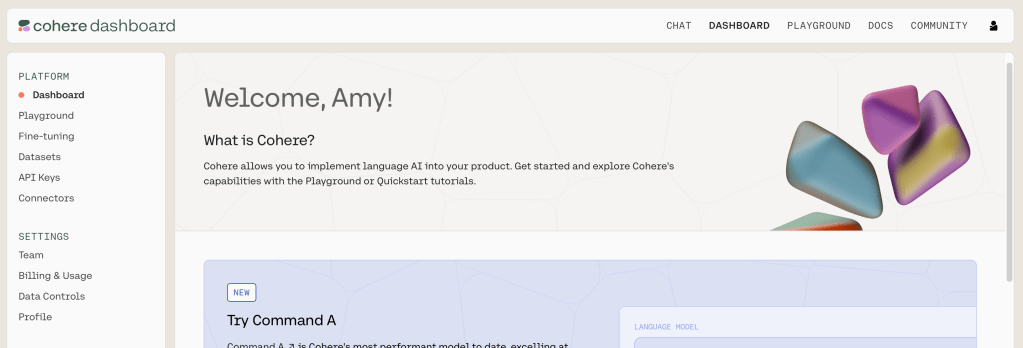
Step 1 – Navigate to https://cohere.com and sign in
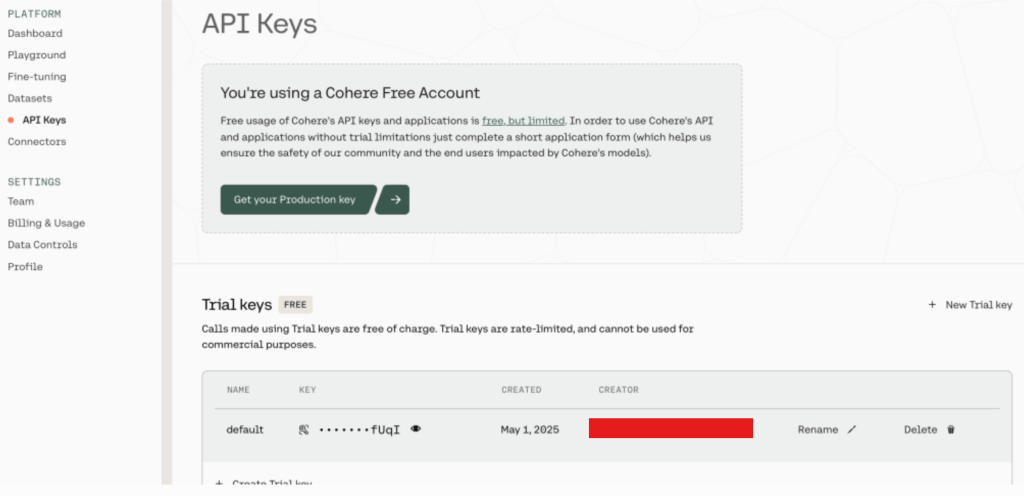
Step 2: Click on “API Keys”. You will see that you already have a “default key”. click on the eye icon to see and copy the key – Save this for later. (note – you will see I have using a Cohere free account).
Subscribe to and configure the AI engine
To subscribe to and configure the AI engine in Oracle integration 3, follow these steps:
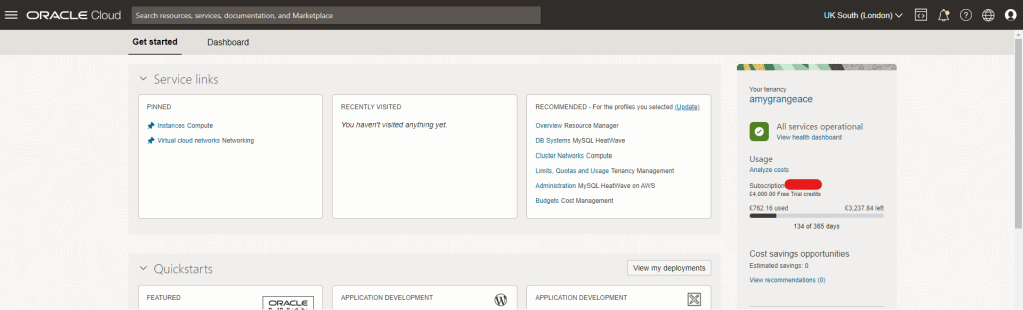
Step 1 – Log into your Oracle Cloud account
Step 2 – Click on the menu icon (often referred to as “Hamburger” or “Pancake Stack” icon)
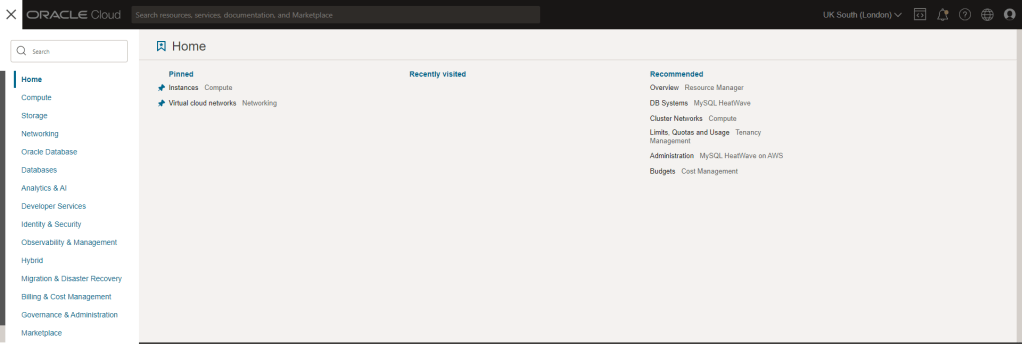
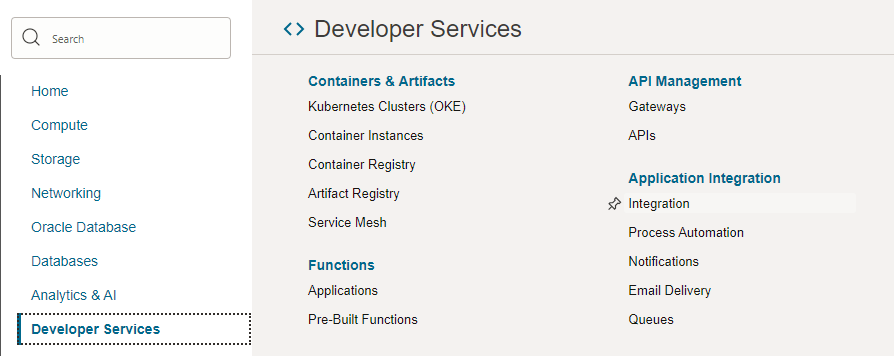
Step 3 – Select “Developer Services” and then Select “Integration”
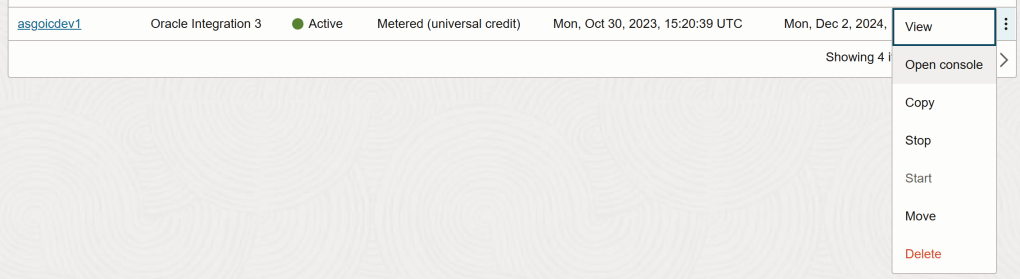
Step 4 – If you wish to change the compartment in which you are provisioning the Oracle Integration 3 instance, you can do so here before clicking the “3 dots” icon. Here you can see that I already have 2 instances already provisioned (1x Oracle Integration Gen 2 & 1x Oracle Integration 3). If you have not yet set up a compartment, see my post: Creating a Compartment in Oracle Cloud.

Step 5 – Select “Open Console”
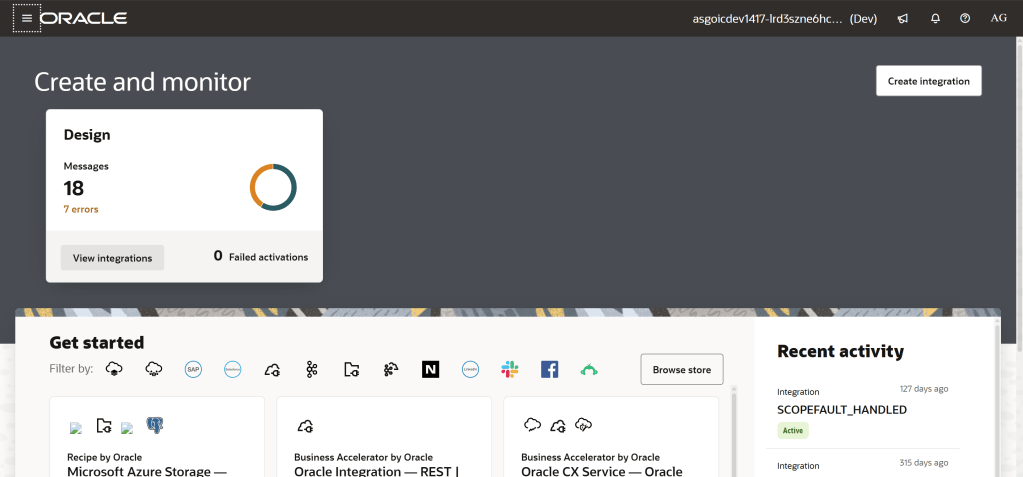
Step 6 – This will open the Oracle Integration service console
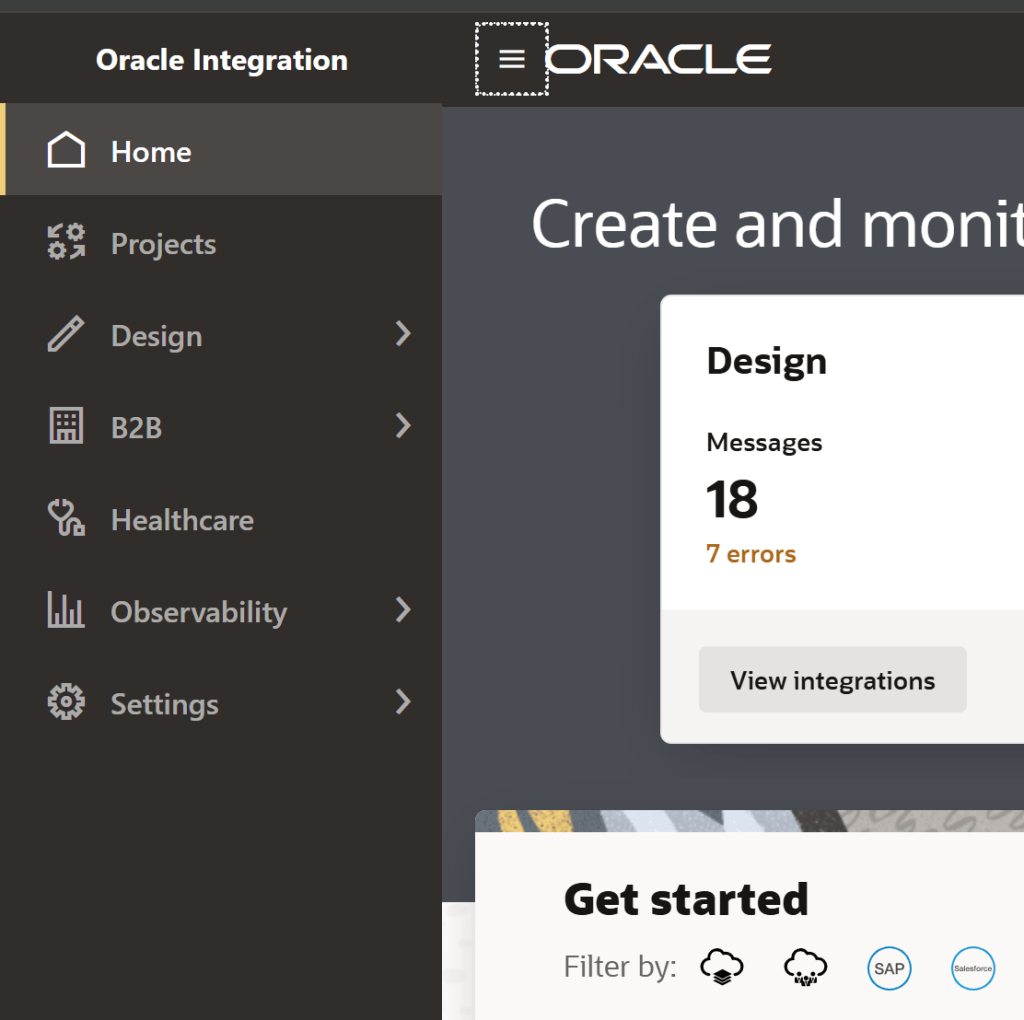
Step 7 – Click on the menu icon (often referred to as “Hamburger” or “Pancake Stack” icon) and then click on “settings”
Step 8 – Click on “AI Engines”
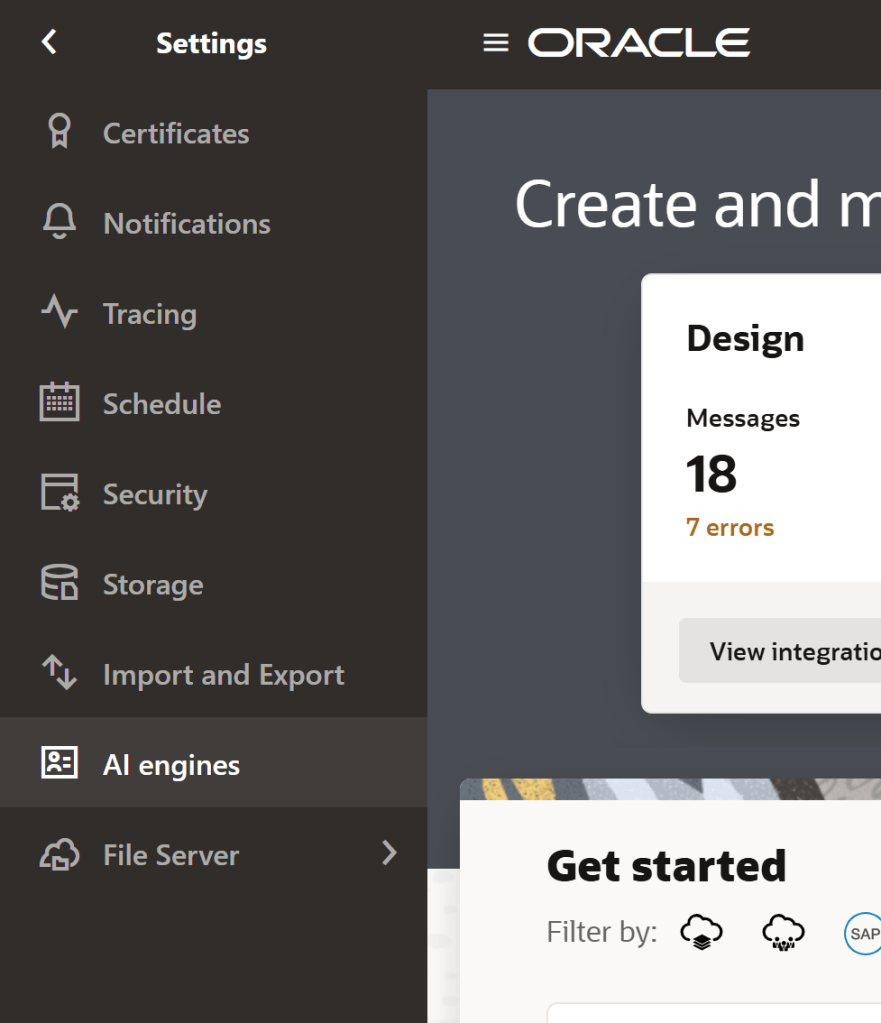
Step 9 – Click “Add”
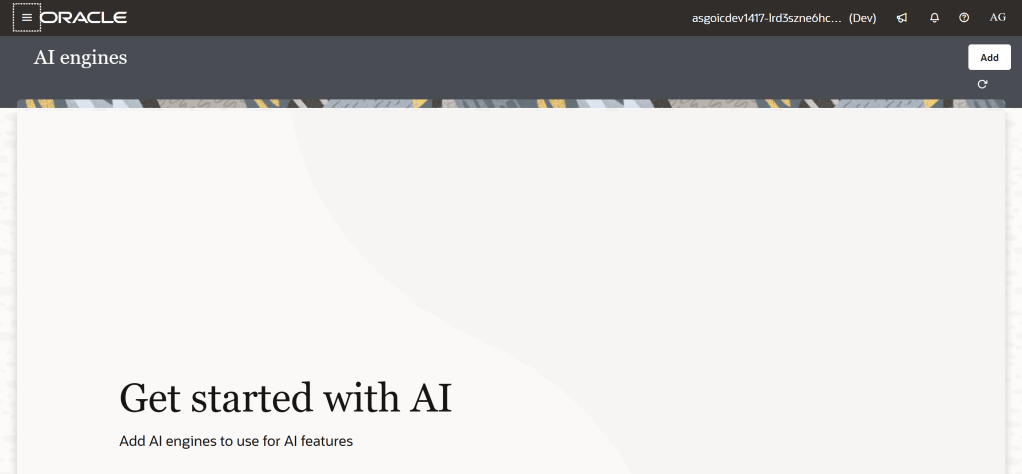
Step 10 – Enter the following information:
- Name: Enter a name for your AI engine
- Engine: Select the engine that you want to use to generate an integration descriptions. The options are as follows:
- Cohere: This engine supports the command-r-plus model.
- OpenAPI GPT-4.4.0: This engine supports the gpt-4o model.
- API Key: Enter the LLM API key you receive when subscribing to the AI engine.
- Set as active engine: Click this check box to make the selected engine the default version. Only one engine can be the default.
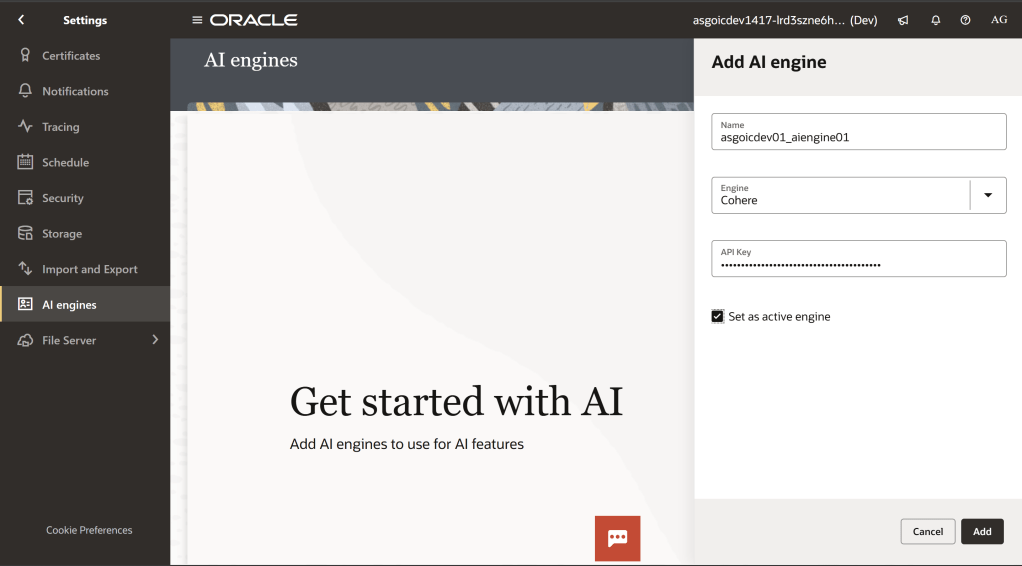
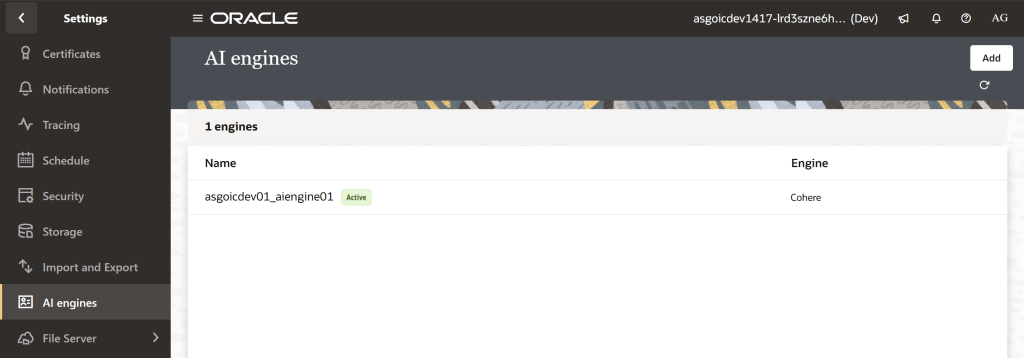
Step 11 – Click “Add”. You will now see your configured AI engine.
 AMY SIMPSON-GRANGE - BLOG
Pingback: Exploring Oracle Integration Cloud: May 2025 - Implementing Oracle Integration Cloud